
Appearance
Users and Roles
Last updated
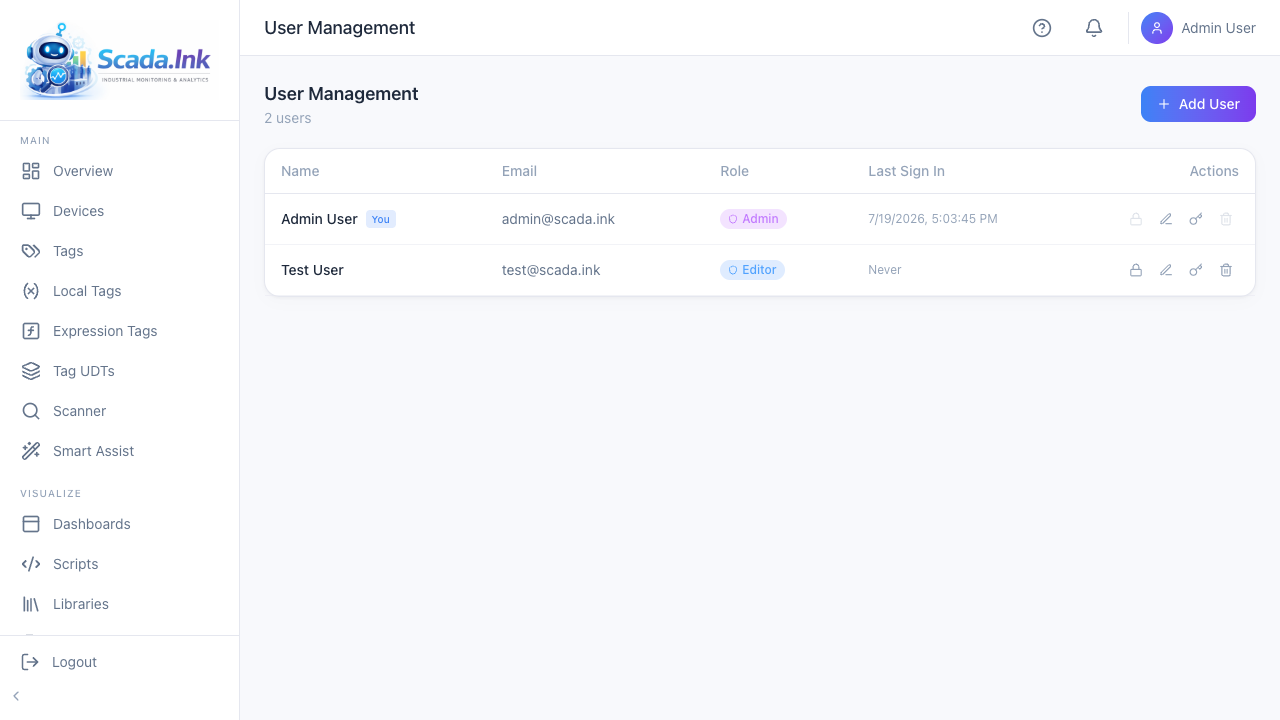
Every person who signs in to Scada.Ink has a user account with one of four roles. The role decides what the API lets them do; per-user access, security levels and two-factor authentication add to it. Only an Admin can open Users (sidebar, admin section) or change accounts.
Roles
Roles are ranked Admin > Editor > Operator > Viewer. A check that needs a role also admits every role above it, so anything an Operator may do an Editor and an Admin may do too.
| Role | What it is for | Typical rights |
|---|---|---|
| Admin | Whoever runs the appliance | Everything: users, secrets, security levels, settings, backup and reset, audit log, the Appliance network/system/certificate tabs, license and feature toggles, and every delete that is admin-only (devices, dashboards, scripts, custom pages, local tags, ladder tasks, data table structure) |
| Editor | Integrators and engineers | Create and edit devices, tags, dashboards, scripts, workflows, custom pages, templates, alarm rules and pipelines, reports, recipes, work orders, SPC; upload files; manage notification groups |
| Operator | Shop-floor staff | View everything a viewer can, acknowledge and shelve alarms, write local tags and device tags, run scripts and workflows, start and stop ladder tasks, record downtime and quality events, submit forms, act on work orders |
| Viewer | Read-only accounts | View dashboards, tags, alarms, history and pages |
A few rules that catch people out:
- Operators can write device tags. Dashboard controls, and the API behind them, let an operator write any tag on a device with Allow Tag Writes ticked. To narrow that, give tags a write security level (see Security Levels). See Writing Tags.
- Operators run only what someone marked runnable. A script, workflow or ladder task has an Operators can run this setting, off until an editor or admin turns it on, on the item's own screen. Until then an operator's button is refused, even for an Open item — a script runs with the authority of whoever saved it, and starting a ladder task drives real outputs. A run grant on a Restricted item works as well. Editing any of these still needs Editor.
- Admins bypass every restriction — per-user feature access, restricted resources, tag permissions and security-level requirements.
- The admin section of the sidebar is shown to every role. A non-admin who opens Users, Settings, Backup and so on sees empty lists or Insufficient permissions errors; nothing is changed.
- Every user can change their own password under My Account by entering the current password and the new one twice. Your other sessions are signed out; the one you are using stays signed in. Five wrong current passwords lock the account for 15 minutes, the same as five failed sign-ins. Accounts that sign in through an external directory change their password there, not on the appliance. Each user can also manage their own two-factor authentication under My Account (see Two-Factor Authentication).
Create a user
- Open Users and stay on the Users tab.
- Click Add User.
- Fill in First Name, Last Name, Email and Password (all required).
- Pick a Role (default Viewer).
- Optionally enter a Mobile Number for SMS and voice alarm alerts.
- Click Create User.
| Field | What it does | Rules |
|---|---|---|
| First Name / Last Name | Display name in the user list, audit log and notification groups | Required |
| Sign-in name; also the address alarm and report emails go to when the user is in a notification group | Required; must be unique (A user with that email already exists). The format is not validated. | |
| Password | Sign-in password, stored as a bcrypt hash | Required; must meet the password policy (by default at least 8 characters, no character-type rules). The policy applies everywhere a password is set: creating a user, an admin reset, My Account, scripts and the setup wizard; see Password Policy & Session Timeouts under System Settings. Existing passwords that no longer meet it still work for sign-in; the policy applies the next time the password is changed. |
| Role | Admin, Editor, Operator or Viewer | Default Viewer |
| Mobile Number | Where SMS and voice alarm alerts go (hint: Used for SMS and voice alarm alerts) | Optional. Enter it in international format, e.g. +15551234567. The appliance stores what you type; the Scada.Ink Cloud relay rejects numbers that are not E.164. Clearing the field removes the number. |
Edit, disable, delete
Each row in the user list has action icons:
| Icon | Action | Notes |
|---|---|---|
| Lock | Manage permissions — per-user feature and resource access | Disabled for admins (Admins bypass all restrictions). See Per-User Access. |
| Pencil | Edit user — name, email, role, mobile number | Click Save Changes |
| Key | Change password — New Password and Confirm Password | Must meet the password policy (by default at least 8 characters); the rules are listed as you type, and Update Password stays disabled until both match. Not available for accounts that sign in through an external directory. |
| Shield with a slash | Reset two-factor authentication (for a lost authenticator) | Only shown for users who have two-factor turned on |
| Ban / check circle | Disable user or Enable user (allow sign-in) | Disabled rows are dimmed and tagged Disabled |
| Trash | Delete user permanently |
Disable rather than delete. Disabling blocks sign-in immediately, keeps the account, and keeps every record that points at it (who acknowledged an alarm, who created a dashboard). On disable the API rejects the user's existing token at once (This account has been disabled.) and any open browser for that user is sent back to the login screen.
Deleting a user keeps everything they touched, just anonymously. Many tables (alarm acknowledgments, dashboards, scripts, workflows, custom pages, secrets, saved queries, ladder tasks, schedules and the audit log) reference the user who created or acted on them. Deleting clears those references to blank rather than refusing — the record itself is never removed, but it no longer says who made it. Disable the account instead if you want to keep that attribution. The exceptions are the compliance records: activity log entries, electronic signatures, work-instruction sign-offs and batch releases keep the person's printed name, recorded when they were written, after the account is deleted.
Guards that apply to both the UI and the API:
- You cannot disable or delete your own account.
- You cannot change the role of, or delete, the last user with the Admin role (Cannot remove the last admin user, Cannot delete the last admin user).
- You cannot disable the last active admin (Cannot disable the last active admin).
Sessions
- Session Timeout (minutes) under System → Settings is an idle timeout. Signing in issues an access token and a refresh token that each last that long (60 minutes by default). While you use the browser — keyboard, mouse or touch — it quietly renews them, so you stay signed in; leave it untouched for the timeout and the session ends, on the appliance as well as in the browser. Dashboards refreshing on their own do not keep a session alive.
- No session lasts longer than 7 days from sign-in, however much it is used (
JWT_REFRESH_EXPIRY_SECONDS, default 604800); after that, sign in again. - If the timeout has never been saved, tokens last 24 hours (access,
JWT_EXPIRY_SECONDS) and 7 days (refresh). - A role change applies on the user's very next request — no re-login and no waiting for the token to expire. Role, e-mail and active status are re-read from the database (briefly cached, a few seconds, so this costs no extra database work on ordinary traffic) rather than trusted from the token, so a demotion, a disable, or a name change is live everywhere that user is signed in within moments.
- Changing a password ends every session signed in with the old one. Changing your own password keeps the session you did it from — you stay signed in with a fresh token — everything else (a kiosk you left logged in, anyone who had the old password) is signed out. Changing someone else's password signs all of their sessions out.
- Disabling an account, or deleting it, ends its sessions immediately — including any open browser tab, which is returned to the sign-in screen, and any live dashboard socket connection, which is dropped within moments rather than left to keep streaming data.
- Signing out ends that one session (browser tab, or kiosk) rather than every device the account is signed in on elsewhere — so a shared operator login open on several kiosks is unaffected by one of them signing out. A script can end every session for a user (
users.logout(idOrEmail)) or the whole appliance (users.logoutAll()) at once; see Scripts. - An access token issued before this behavior existed keeps working as before until it expires — nobody already signed in is forced to sign back in by an upgrade.
- Five wrong passwords in a row for the same email locks it out for 15 minutes — sign-in is refused outright, without even checking the password, until the lockout expires. It's judged per email, in memory, so an API restart clears any lockout in progress. Every failed attempt is recorded in the audit log as
login_failedwith the email that was tried. - On first sign-in with the seeded account
admin@scada.ink/admin, a banner (Default password in use) recommends changing it. Nothing forces the change; do it on any appliance reachable from a network.
Notification groups
The Notification Groups tab on the same page holds named sets of users that alarm pipelines send to. See Notification Groups.
Troubleshooting
| Symptom | Cause | Fix |
|---|---|---|
| Insufficient permissions on a page | The signed-in role is below what the page's API needs | Sign in as a higher role, or change the user's role and have them sign in again |
| User still has old rights immediately after a role change | Rare — role is re-read from the database within a few seconds on every request | Wait a moment and retry; if it persists, have them sign out and in |
| Cannot remove the last admin user | You tried to demote the only admin | Promote another user to Admin first |
| Invalid email or password for a correct password | The account was created with different capitalization of the email, or an old password | Emails are matched exactly; check the list, then set a new password with the key icon |
| This account has been disabled. Contact an administrator. | The account is disabled | Enable it with the check-circle icon |
| Operator's dashboard toggle does nothing, API returns 403 | Device tag writes need Editor | Use a local tag for operator controls, or raise the role |