
Appearance
Tags & the Tag Browser
Last updated
A tag is one named data point: a spindle speed, a part counter, a valve command, a text recipe name. Everything else in Scada.Ink (dashboards, alarms, the historian, scripts, workflows, ladder logic, OPC-UA) works on tags.
A tag is identified by two things:
- the device it belongs to, by its numeric device id (the number in the address bar on the device page, e.g.
/devices/3); - its tag path, a text string such as
Spindle/Speed,HoldingRegister/0orProgram:MainProgram.PartCount. The path format belongs to the device's protocol; Scada.Ink stores it exactly as typed and does not check it. Paths are case-sensitive and/is only a naming convention.
Where tags come from
| Kind | Created on | Device id | Notes |
|---|---|---|---|
| Device tag (subscription) | A device's Browse Tags, Manage Tags or Tag Locator tab | The device's id | Polled from the real device by its driver. See Subscribing to Device Tags. |
| Local tag | Local Tags page | The id of the built-in Local Tags device | Software variables stored on the appliance. See Local Tags. |
| UDT instance member | Tag UDTs page, or Local Tags with a UDT type | The chosen device | One ordinary subscription per UDT member. See Tag UDTs. |
| Expression tag | Expression Tags page | 0 | Path is Expression/<name>. Not a subscription, but can be alarmed and recorded. See Expression Tags. |
| Appliance health tags | Created automatically | The Local Tags device's id | _STATUS/System/…: CPU, memory, disk, temperature. See System Status Tags. |
| Connection diagnostic tags | Created automatically with each real-protocol device | The device's id | _STATUS/Connected, _STATUS/SecondsSinceLastComm, _STATUS/LastCommTime (see below). |
| Ladder, workflow and script status tags | Created automatically with each ladder task, workflow and script | The Local Tags device's id | _STATUS/Ladder/…, _STATUS/Workflow/…, _STATUS/Script/…. See System Status Tags. |
How values flow
- A driver reads the device every Polling Rate (ms) set on the device.
- The API applies the tag's scaling (if any), then drops the update if the value and quality are unchanged, or if the change is inside the tag's deadband.
- A change that gets through is stored in the live value cache, saved as the tag's last value, written to the historian (when History is ticked), sent to every open screen that shows the tag, and passed to alarm rules, script and workflow triggers, ladder logic and the OPC-UA server.
Values always travel as text. 1500, true and AUTO are all strings; each consumer converts them (alarms and expressions treat true/false as 1/0, for example).
The Tag Browser page
Open Tags in the sidebar. The page title is Tag Browser.
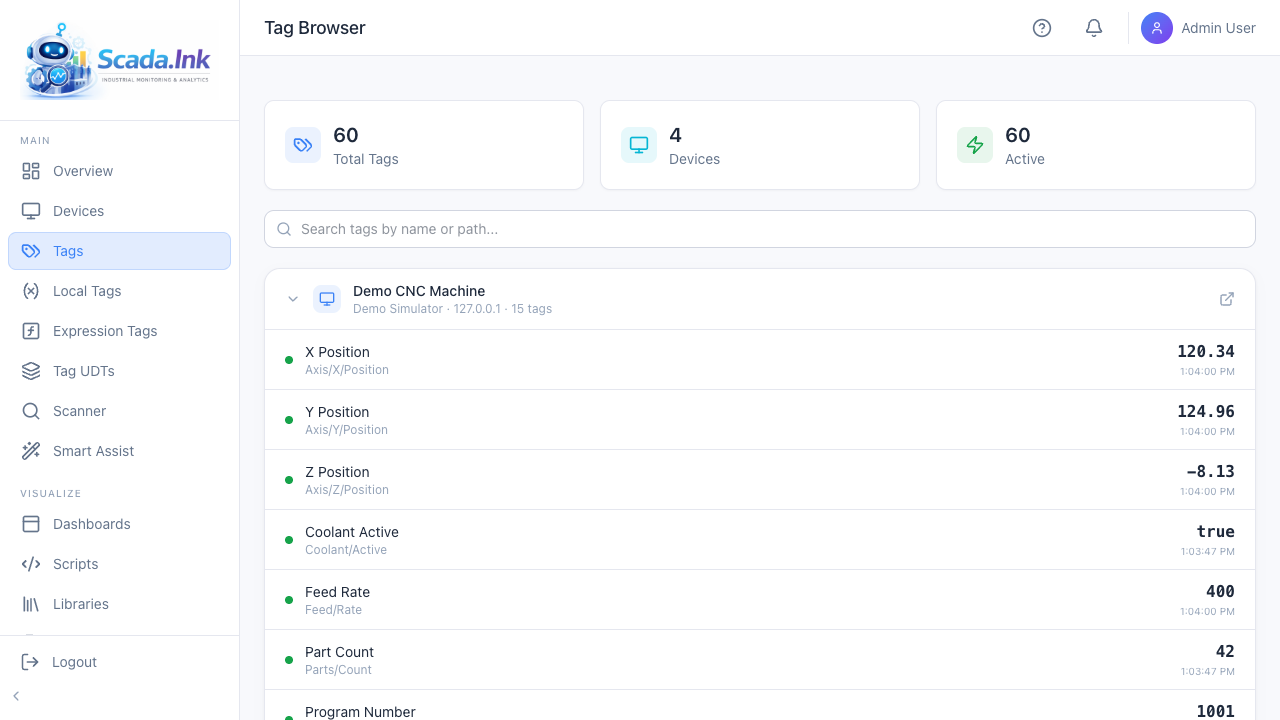
| Item | What it shows |
|---|---|
| Total Tags | Every tag on every device, including disabled ones, local tags, UDT members, _STATUS tags and (when the feature is on) expression tags. |
| Devices | How many devices have at least one tag. Expression tags count as one, Expression Tags. |
| Active | Tags whose Enabled flag is on. |
| Search tags by name or path... | Filters by tag path or display name (not device name). |
| All devices | Device filter: show one device's tags only. |
| Table | One row per tag: quality dot, display name and path, Device, Type, Value and Updated (time of the last change, in your browser's time zone). Click a column heading to sort by it; click again to reverse. The first 200 rows are shown; Show more adds 200 at a time. |
| Export CSV / Import CSV | Admin and editor only. See CSV export and import below. |
Click a row to open its details panel beside the table; click it again or the × to close it.
| Panel part | What it shows |
|---|---|
| Live value | The current value with its quality dot, the quality in words (No live update yet before the first one), the live Timestamp, and Last saved: when the appliance last stored a value for the tag. |
| Configuration | Type, polling rate (Device rate when the tag has none of its own), Polling now (the rate the tag is read at this moment, Fast or Slow for a scan class, and where it comes from: the tag's scan class, the tag's own Poll (ms), the device's scan class or the device's polling rate; local, expression and paired-appliance tags are not polled), polling on/off, history, deadband and scaling when set, Source address (the address the driver reads, for a UDT member), UDT member, OPC-UA browse name and whether it is writable, and System tag for engine-managed tags. For an expression tag: the expression, how it is evaluated, history, and its last error. |
| Change script | The Tag Change scripts that watch the tag and Create change script (admin and editor). Not shown for system tags. See Tag Change Scripts. |
| Where used | Every dashboard, template, custom page, script, workflow, ladder routine or task, alarm rule, report, expression tag, transaction group, recipe, OEE and SPC configuration that references the tag, each linking to its page, with the widget, node or rung name where known. Scripts and custom pages are matched on the tag path written as a quoted string in their code (with the device id or name for a non-local device), so a path a script builds at run time is not found. Nothing references this tag. means none of these do. |
The Tag Browser itself does not subscribe, edit, write or delete tags, and it never contacts devices. With no tags at all it shows No tag subscriptions yet. and a View Devices button.
Note: Until the first live update arrives, a row shows the last value saved on the appliance with a hollow green ring instead of a filled dot. Hover the ring to see when the device last reported. The appliance only saves good-quality values, but a saved value can be old, for example when the device has been disconnected since. See Tag Quality, Values & Timestamps.
CSV export and import
Export CSV downloads every tag, or only the device chosen in the filter, as tags-<date>.csv. _STATUS/ tags are left out: the appliance maintains them. Expression tags are not in the file.
The columns, in order: device (the device name; Local Tags for the local device), tag_path, display_name, data_type (int, float, string, bool), source_address, polling_rate_ms (empty = the device's rate), enabled, history_enabled, deadband_type (none, absolute, percent), deadband_value, scale_mode (none, linear, square_root, table), scale_raw_min, scale_raw_max, scale_eng_min, scale_eng_max, scale_clamp, eng_units, scale_points (lookup-table points as raw:eng;raw:eng, e.g. 9133:-20;7708:0;5000:25; empty for other modes; for table the four range columns are recalculated from the points), default_value, persist, opcua_exposed, opcua_writable, opcua_browse_name. Yes/no columns accept true/false, 1/0, yes/no and on/off.
Import CSV opens Import tags from CSV:
- Choose file and click Preview. Nothing is written yet.
- The preview counts rows to Create, Update (with the columns that change) and leave Unchanged, and lists every row with its line number. A row that cannot be imported shows Error and the reasons, for example No device named "Press 9", data_type must be int, float, string or bool, Same tag as line 4, default_value "maybe" is not true or false, a scaling range error, or Local tags have no source address. Tick Errors only to list just those.
- Import is available only when no row has an error. It writes the whole file at once, then applies history, deadband, scaling and source-address changes immediately, sets new local tags to their default value, and tells the drivers about new tags. The dialog then says how many were created and updated.
Only device and tag_path are required in the header; the file may carry any subset of the other columns, in any order, and a column left out leaves that setting alone on existing tags (new tags get the default). Unknown or repeated column names, more than 20,000 rows, and _STATUS/ paths are refused. Importing never deletes tags. Export, edit and import the same file to change many tags at once.
Connection diagnostic tags
Every device with a real protocol driver gets three system tags when it is created. Demo, Simulator and Local Tags devices do not.
| Tag path | Display name | Type | Value |
|---|---|---|---|
_STATUS/Connected | Connected | bool | true while the device is connected, otherwise false. |
_STATUS/LastCommTime | Last Comm Time | string | ISO time of the last moment the device was connected. Tracks the current time while connected and freezes when the link drops. Empty if never reached. |
_STATUS/SecondsSinceLastComm | Seconds Since Last Comm | int | 0 while connected; counts up once a second after a drop. -1 means the device has never been reached since the appliance started and has no connection in its log. |
They show a system badge in Manage Tags, cannot be selected, edited or unsubscribed, and are updated by the API, not the driver. You can alarm on them, chart them and tick History like any other tag. Use _STATUS/Connected for a "machine offline" alarm or indicator.
Ladder tasks, workflows and scripts have their own _STATUS/ tags on the Local Tags device, for faults and failed runs. The whole family is in System Status Tags.
Who can see tags
- The Tag Browser needs the Tags page in the user's page access; any role can view it.
- Subscribing, editing and unsubscribing need the admin or editor role.
- Writing values is covered in Writing Tag Values & OPC-UA Exposure.