
Appearance
The Facility Overview home page
Last updated
Overview at the top of the sidebar opens the Facility Overview: a quick status of every device configured on the appliance. It is the page you land on after signing in.
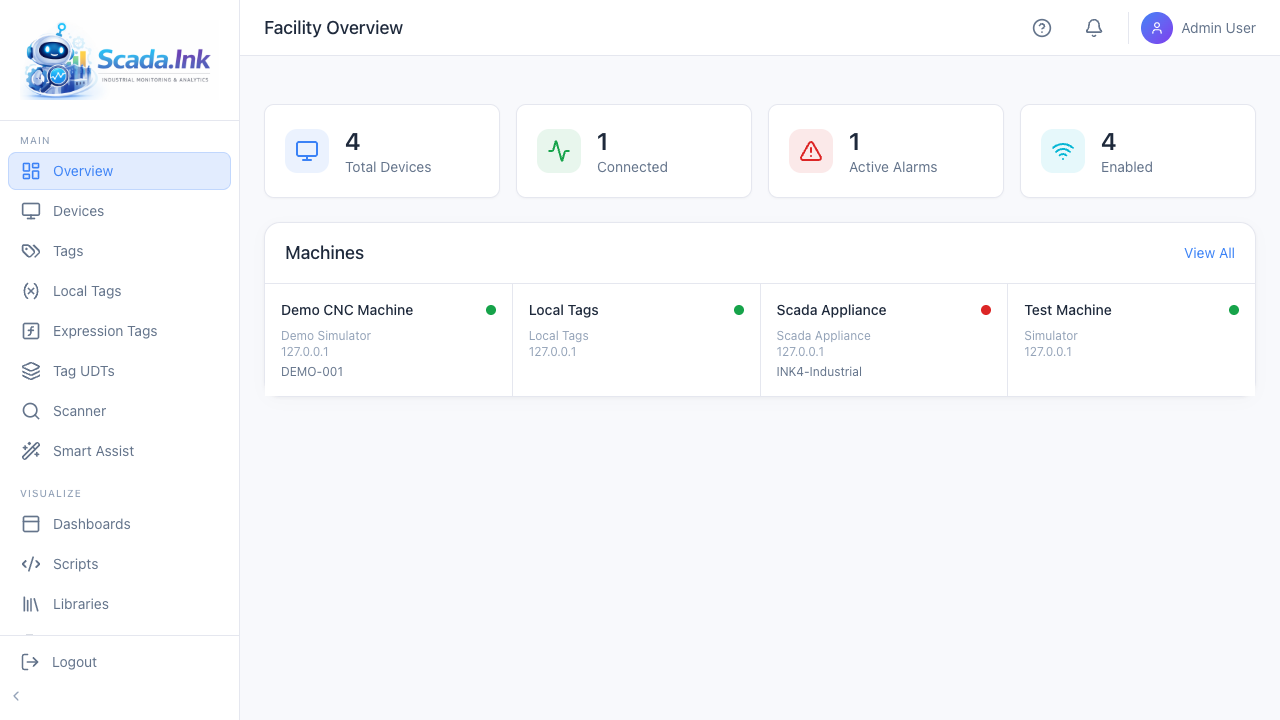
Summary cards
| Card | What it counts | Refresh |
|---|---|---|
| Total Devices | Every configured device, enabled or not, including the built-in local tag device | When the device list changes |
| Connected | Devices currently connected | Every 10 seconds |
| Active Alarms | Alarms currently active and not shelved (the same alarms the panel below lists) | Every 30 seconds, and immediately on live alarm events |
| Enabled | Devices that are enabled | When the device list changes |
Active Alarms panel
Lists the newest active alarms, up to eight, newest first: a severity badge (Critical, Warning, Info), the alarm message, the device and tag, how long ago it fired, and Not acknowledged until someone acknowledges it. Shelved alarms are left out. Below the list, N more on the Alarms page counts the rest. Open Alarms goes to the Alarms page, where alarms are acknowledged and shelved. With nothing active it says No active alarms.
Production Today panel
Shown beside the alarms when the OEE feature is enabled and at least one device has OEE turned on (it is hidden otherwise). Refreshes every 30 seconds.
| Figure | Meaning |
|---|---|
| Average OEE now | The average of the current-period OEE of devices that have a scheduled period right now; a dash when none do |
| Good / Rejects / Total | Parts across all OEE devices for today's production day so far — every shift of the day, not only the current one. A night shift that started yesterday evening counts toward the day it belongs to |
The table lists each OEE device: its current-period OEE (hover for availability, performance and quality), today's good and reject counts, and the period running now — the shift name, Day when no shifts are set up, or Off shift (OEE shows a dash). Open OEE goes to the OEE page.
Machines
The Machines card shows one tile per device with:
- the device name and a status dot — green connected, amber connecting, gray disconnected, red error;
- a red count beside the dot when the device has active alarms;
- the protocol;
- the IP address;
- the machine name, when one is set on the device.
Hover over a tile (or move to it with Tab) for its details: status, run state when the device reports one, when data last arrived, how long it has been connected, uptime over the last 24 hours, successful and failed polls and the average poll response time (devices polled by the driver service only), the number of active alarms, and the last error when it is not connected. The same statistics are on the device's own page; see Connection statistics.
Click a tile to open that device's detail page. View All opens the Devices page. Connection states refresh every 10 seconds; the hover statistics every 30.
With no devices
The card shows "No devices configured yet." and an Add Device button that opens the Devices page. From there you can add a device, run the network scanner, or add a simulator to try the system. See Adding a device and Network Scanner.
Things to know
- The tiles show connection state; run state appears only in the hover details. For a run-state view (running, idle, fault) use a Machine Status widget on a dashboard, or the TV Display.
- There are no settings on this page. For a plant-specific home screen, build a dashboard and use it on your panels; see Operator Hub and TV display.