
Appearance
Navigating the interface
Last updated
The interface has three parts: the sidebar on the left, the top bar, and the page content.
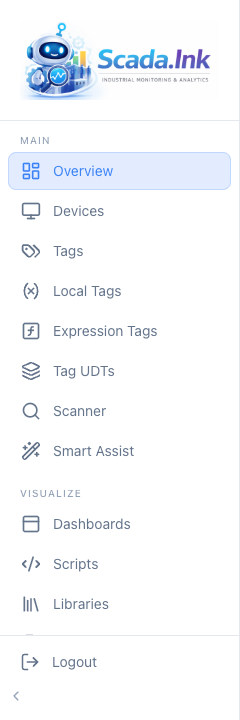
The sidebar
The sidebar lists pages in four groups, in this order: Main, Visualize, Monitor and System. The full list, with the license each page needs, is in Every page in the sidebar.
What you see depends on three things, checked for every entry:
- License and feature toggles. A page that needs a licensed feature is hidden unless that feature is licensed and switched on in Feature Toggles.
- Your feature access. If an admin has restricted your account, pages for features you were not given are hidden. Admins always see everything. See Feature toggles and per-user access.
- Hidden pages. An admin can hide some pages for the whole appliance under System → Settings, Navigation card. A group with no visible pages disappears.
At the bottom of the sidebar:
- Language — a drop-down listing each language in its own name (English, Español, Français, Deutsch). Your choice is saved to your account, so it follows you to other computers; on the sign-in page it is remembered for that browser only. Without a saved choice the page uses the language last picked in this browser, then the appliance's Default Language (System → Settings), then the browser's own language.
- Logout.
- The arrow button collapses the sidebar to icons (Collapse sidebar / Expand sidebar). Hover an icon to see its name. The language picker is hidden while collapsed. The sidebar opens expanded again when you reload the page.
On a phone (a screen narrower than 768 pixels) the sidebar is off the page so the content gets the whole width. Tap the menu button (three lines) at the left of the top bar to open it over the page; picking a page, or tapping beside the sidebar, closes it again.
Hiding pages
Under System → Settings, Navigation card, an admin can hide: Dashboards, Scripts, Libraries, Custom Pages, Data Tables, Workflows, History, Alarms, Files, Schedules, Driver Health, Users and Appliance. Click Save Settings to apply.
A hidden page is removed from everyone's sidebar, and opening its address directly sends you back to the overview. Hiding does not change licensing, does not delete anything, and does not block the API — it is a tidy-up, not a security control.
Warning: Hiding Users or Appliance also hides them from admins. Un-hide them in the Navigation card when you need them again.
The top bar
From left to right:
| Item | What it does |
|---|---|
| Page title | The name of the current page (Scada.Ink on pages without their own title) |
| Waiting to send | Appears only when this browser is holding form submissions that have not reached the appliance yet. Amber with a count when they are yours, red when the appliance refused one. Click it to see each record, Send now, retry or Discard. Records are sent automatically once the appliance is reachable |
| Page help (question mark) | Appears on pages that have short built-in help. Opens a panel from the bottom of the screen with tips for that page; some pages add an API Reference tab. Press Esc or click outside to close |
| Notifications (bell) | Alerts raised while you are signed in: alarm events, warnings, results of actions. A red badge shows the unread count (99+ above 99) |
| Your name | Opens My Account (two-factor authentication) |
Notifications panel
Click the bell to open it. Each entry shows a title, message and age (Just now, 5m ago, 2h ago, 3d ago). Hover an entry for Mark as read and Dismiss; the header has Mark all as read and Clear all notifications. Notifications are kept in the open browser tab only — reloading the page clears them — so they are not a history. For alarm history use the Alarms page.
Live data banner
If the browser loses its live connection to the appliance, a red bar appears under the top bar: "Live data disconnected — reconnecting… Values shown may be stale." It disappears when the connection returns. Values on screen do not update while it is shown.
Full help
Help in the System group opens the Help & Documentation page, with every topic by category and a search box. Contact opens the Contact Us page.