
Appearance
Device Detail Page
Last updated
Click a card on the Devices page to open /devices/<id>. That number is the device ID, which the API, scripts and Advanced Driver Settings use — it's also shown right next to the device name in the page header, so you don't need to read it out of the address bar.
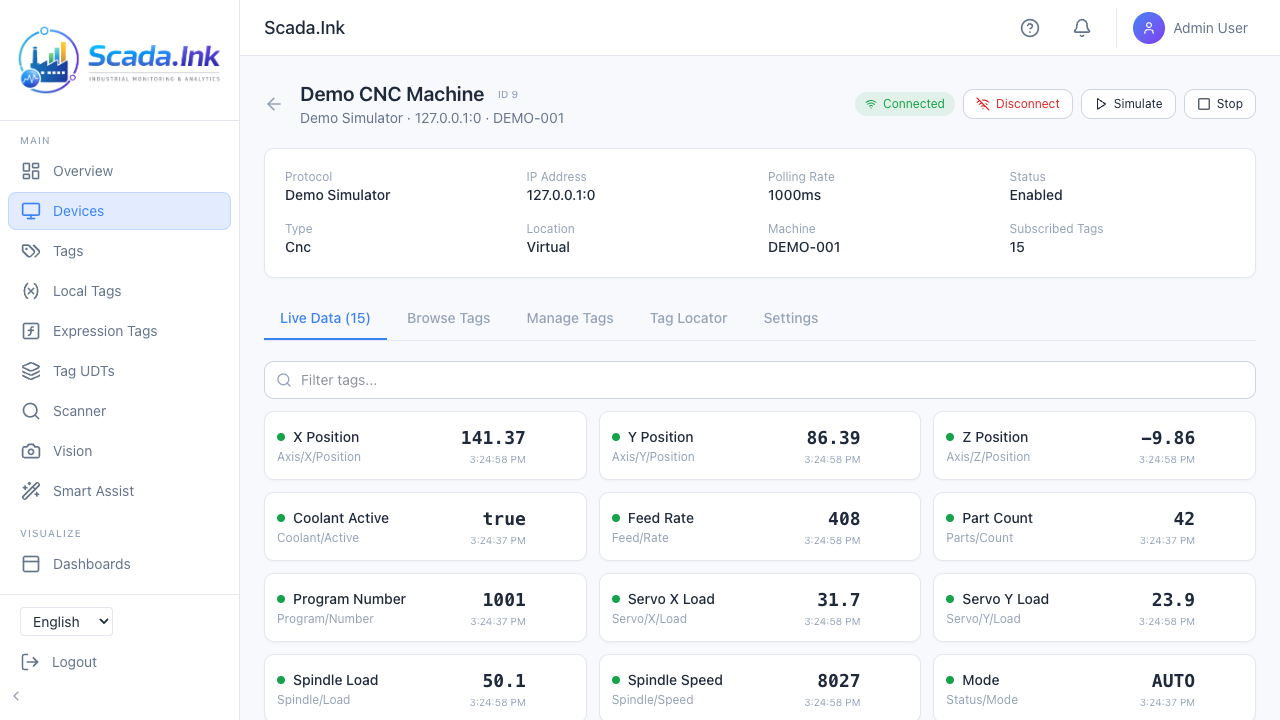
Header
- Back arrow, device name with its ID badge, and a subtitle protocol · IP:port · machine name.
- Connection pill: Connected, Connecting..., Disconnected, or Stopped (someone clicked Disconnect and it hasn't been started since). Not shown for Local Tags and the Scada Appliance device.
- Connect (tooltip Connect to device and start polling tags) or Disconnect (Disconnect from device). Not shown for Local Tags and the Scada Appliance device. Connect clears the "stopped" mark; Disconnect sets it, so the reconnect supervisor leaves the device alone until someone clicks Connect. The stop survives a restart of the server.
- Simulate / Stop — shown on every device except simulators. See below.
- The ? button opens a short in-page help panel.
The info card under the header shows Protocol, IP Address, Polling Rate, Status (Enabled/Disabled), Type, Location, Machine and Subscribed Tags.
Below it, Connection statistics (refreshed every 10 seconds):
| Figure | Meaning |
|---|---|
| Connected for | How long since the device last went from not connected to connected. A dash while it is not connected. After an API restart it counts from the last logged connection if the device never logged a disconnect since |
| Uptime (24h) | Share of the last 24 hours the device was connected, from the connectivity log (the same log Driver Health lists). Amber below 95%. A dash until there is at least a minute of history |
| Successful polls / Failed polls | Poll cycles since the API last started. A poll fails when the device is not connected or the read raises an error; the failure percentage follows the count. Amber when any failed |
| Avg response | Average time a successful poll took, in milliseconds. Hover for the slowest |
Poll counts come from the driver service, so devices the appliance simulates itself (demo, simulator, local tags) have none and the card says so. The same figures appear when you hover a device tile on the Overview page. Over the API: GET /api/driver-health/:id/stats, or GET /api/driver-health/stats for every device.
Simulate and Stop
Simulate (Generate random test data for subscribed tags) makes the server push a random number between 0.0 and 100.0 into every enabled subscribed tag once a second and marks the device Connected. Use it to test a dashboard or alarm before the real machine is wired. Admin only.
- It needs at least one subscribed tag. Without one, a Simulation didn't start notification shows the reason: No subscribed tags for this device. Subscribe to tags first.
- If Simulate or Stop fails for any other reason (for example you aren't an admin), a notification says so.
- It doesn't stop real polling. If the device is also connected, real and random values alternate. Disconnect first.
- Stop ends the random data but doesn't change the connection pill.
- On the Demo CNC Machine, Stop halts the demo data itself and the pill shows Stopped; click Connect to restart it (clicking Simulate instead fills the demo tags with random numbers).
Tabs
| Tab | Purpose |
|---|---|
| Live Data (N) | One card per subscribed tag with display name, path, value, last update time and a quality dot: green Quality: Good, red Quality: Bad / Stale, gray Quality: Uncertain. With more than five tags a Filter tags... box appears. Hover a card for deadband, Engineering-unit scaling and unsubscribe icons (deadband needs the deadbanding feature). See Tags. |
| Browse Tags | Asks the driver for the device's available tags and shows them as a tree. |
| Manage Tags | For normal devices: the subscription table (Tag Path, Display Name, Type, Poll (ms), Last Value, Enabled, History, OPC-UA, Actions) and Add Tag. For simulators: the simulation tag editor (Simulator Devices). See Tags for the columns. |
| Tag Locator | Finds an unknown tag by watching how values change. See Tag Locator. |
| Settings | Name, connection, write access, delete. |
Browse Tags
- Open the tab. The first time, the page asks the driver for the tag list (Browsing device tags...).
- Expand folders. The tree splits tag paths on
/and., soProgram:Main.Speedsits under Program:Main. OPC-UA tags nest by the server's own folders. - Tick tags, or tick a folder to select everything under it. Tags already subscribed show a check mark. On a big list, type in Filter tags... above the tree: it keeps only tags whose name or path contains the text (upper or lower case doesn't matter), opens their folders and shows Showing N of M tags. Ticking a folder while filtering selects only the matching tags in it, and tags you ticked before filtering stay selected.
- Click Subscribe Selected (next to N selected). The display name and data type come from the browse result.
What Browse returns depends on the driver. Only MTConnect, ControlLogix/CompactLogix, OPC-UA and SECS/GEM read the list from the device. The others return a fixed example list or your configured list; for those, you usually type paths under Manage Tags → Add Tag instead.
If browsing fails you see Unable to Browse Tags, the error text, and Retry. If the driver service is unreachable but a previous browse succeeded, the old list is shown with the banner Showing previously discovered tags — live browsing unavailable.
Adding a tag by path
Manage Tags → Add Tag (Add a new tag subscription by path) opens Add Tag Subscription:
| Field | Meaning |
|---|---|
| Tag Path | The driver's address for the value, exactly as the driver guide shows (e.g. N7:0, DB1/REAL/0, ns=2;s=Line1.Speed, HoldingRegister/99). Not validated: a wrong path is saved and simply reads Bad. |
| Data Type | float, int, bool or string. Default float. |
| Display Name | Optional friendly label. Defaults to the part of the path after the last /. |
Click Subscribe. Adding a path that is already subscribed does nothing.
Settings tab
| Section | Fields | Notes |
|---|---|---|
| Device Info | Name, Description, Machine Name, Machine Type, Location | |
| Connection Settings | IP Address, Port (0–65535), Polling Rate (ms), Scan class (a scan class the device's tags follow instead of the polling rate, unless they have a rate or class of their own; not shown for Demo, Local Tags and paired-appliance devices), Enabled, Auto Reconnect. Scanners and scales show Connection Type and Serial Port instead of IP/port; Modbus RTU has no IP/port (its serial port is under Driver Settings). | See the warning below. |
| Driver Settings | The protocol settings the driver reads, e.g. Slot, Rack, PLC node number, Frame type, Unit ID, Register map, serial settings, Security policy, Username/Password, Topics. Empty fields use the default shown. | Only for drivers that have such settings. A stored password shows as dots; leave it to keep it, type to replace it, clear it to remove it. |
| Tag Write Access | Allow Tag Writes | Shown only for drivers that support writes. |
| Address Ranges | Type (%R, %AI, %AQ, %I, %Q, %M), start, end; Add Range, Reset to defaults | GE / Emerson SRTP only. |
| Danger Zone | Delete Device → Confirm Delete | Admin only. |
Save Changes and Cancel appear only once you change something.
Saving a new IP Address, Port, Polling Rate (ms) or any Driver Settings reconnects the device with the new values straight away; you don't need Disconnect and Connect. The device shows Connecting for a moment, and live values pause while it reconnects. Saving only a name, description, machine detail, Scan class or Allow Tag Writes doesn't reconnect. A disabled or stopped device isn't started by a save; it uses the new settings the next time it connects. Unticking Enabled disconnects at once; ticking it connects at once.
Save Changes only rewrites the driver settings this tab shows. Extra settings you added through the API (for example a scanner's strip_prefix) are kept.
Delete Device permanently removes the device and all its tag subscriptions. Dashboards and SPC groups that pointed at the device are kept but lose the link; the device's connectivity and error logs are deleted. The Scada Appliance device can't be deleted.
Troubleshooting
| Symptom | Cause | Fix |
|---|---|---|
| Unable to Browse Tags — Device not connected | The driver has no live connection for this device. | Click Connect, check Driver Health, then Retry. |
| Unable to Browse Tags — Driver service unavailable or Tag browsing failed. Ensure the driver service is running and the device is reachable. | The driver service isn't running or didn't answer. | See Troubleshooting Devices. |
| Browse shows No tags found. Click below to browse. | The driver returned an empty list — for ControlLogix this is also what a browse error looks like. | Check the driver log; type paths under Manage Tags instead. |
| Value cards stay gray with -- | No value received yet: device not connected, wrong path, or (MTConnect/MQTT) no data for that item. | Check the path against the driver guide. |